Convert Tensors
You use the Convert Tensors form (model > Geomechanics > Tools > Convert Tensors) to convert property values from one convention to another and to extract the principal direction and values. You typically do this after importing the results of a 4D Geomechanics simulation (e.g., Abaqus), the results of a geomechanics finite element simulation (e.g., Abaqus), or when you have completed building a 3D geomechanical model in JewelSuite. Although in most cases these values will be stress values, the form can be used for any property that has a physical quantity with both direction and magnitude, and is described by sets of properties, such principal components and direction, or as the components of a tensor. When you convert the geomechanical properties to JewelSuite tensor properties, you can use the Shape Graphics form to display stress using the tensor, which allows you to visualize stress rotations.
The input data can be provided as tensor components or as principal values. The input data must be stored as properties under one of the following data sources in the JewelExplorer:
- Event - The properties are stored under the object's geometric representation (this can either be a point set, polyline set, 2D grid or tri-mesh) in the Data folder or Surface Set folder in the JewelExplorer.
- 3D Grid or 3D Mesh - The properties are stored in the object's Properties folder in the JewelExplorer.
Depending on the selected input type (tensor components or principal values), the required input properties change, and different output properties can be selected. If the input data has multiple time steps, the output properties will also have the same time steps. For more information, see Managing time steps and realizations.
- The selected properties have the same unit (except the Azimuth when using Principal Values as input).
- The selected properties have the same storage type (e.g., for a 3D mesh, all properties are node properties or element properties).
- The selected properties have the same number of time steps and the same start date.
To convert tensors
- Under Source type, select the type of object that contains your input data. This will act as a filter for the rest of the selection fields. Not all fields are available for all types.
- Under Source, select the model that contains the input data.
- Under Event, select the event that contains the input data.
- Under Representation, select the geometric representation that contains the input data.
- Under Input type, select how you will provide the stress data by choosing one of the options:
- Principal Values
- Tensor (JewelSuite)
- Tensor (Abaqus/FLAC3D)
- Tensor (CMG)
- Enter the Input Properties.
- Sv, the principal value in the vertical direction.
- The principal values SHmax and Shmin (maximum and minimum in the horizontal direction) an object can have at each location of the object. When you use stresses as input, the selected stresses need to be total stresses, with compressive stress positive.
- The azimuth orientation of SHmax, measured clockwise from North.
- Tensor components defined in the JewelSuite convention. When you use stresses as input, the selected stresses need to be total stresses (i.e., stress including pore pressure), with compressive stress positive.
- Tensor components defined in the Abaqus or FLAC3D convention. When you use stresses, the selected stresses need to be total stresses (i.e., stress including pore pressure), with compressive stress positive.
- Tensor components defined in the CMG convention. When you use stresses, the selected stresses need to be total stresses (i.e., stress including pore pressure), with compressive stress positive.
- Imported stresses after simulation from CMG are typically effective stresses, so to obtain the correct total stress input, the pore pressure should be added to the diagonal tensor components (e.g., using the property calculator) before using this form.
- Under Output Properties, specify to which convention you want to convert the input data. Depending on the selected input type, the available output properties are activated for selection. Choose from: Tensor (JewelSuite), Eigen Properties and Principal Values.
- Enter a Prefix that is used for all the properties that will be generated. To create the Output Properties inside a folder (for objects that support this), you can use a backslash '\'. For example, using '<folder name>\<prefix>' will create the output properties inside the <folder name> with the specified prefix.
- Click Apply and keep the form open, or click OK to convert the input properties and close the form. The new properties are stored under the selected source object in the JewelExplorer.
 Input type = Principal Values
If you do not have data in the form of tensor components, you can select Principal Values and provide the following data:
Make sure that all the values are according to the JewelSuite convention, see image below.
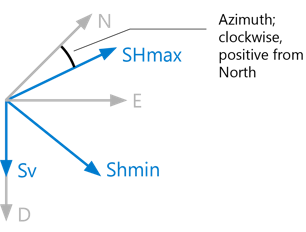
Graphical representation of the input parameters when using principal values as input. click to enlarge
To assign input properties for Principal Values
On the right side of the form, under Input Properties, select the input properties from the drop-down lists. When you assign these properties, make sure the Input data requirements as listed above are met.
Continue with step 7.
If you have data in the form of tensor components in the JewelSuite convention, select Input type as Tensor (JewelSuite). In the JewelSuite convention, the value of the Z coordinate is positive downward.
To use this method, you need to have the following information:
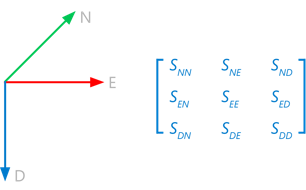
Graphical representation of the input tensor components in the JewelSuite convention. The first letter indicates the plane; the second letter indicates the direction. click to enlarge
To assign input properties for Tensor (JewelSuite)
On the right side of the form, under Input Properties, select the input properties from the drop-down lists, i.e., SNN, SNE, SND, SEE, SED, SDD. When you assign these properties, make sure the Input data requirements as listed above are met.
Continue with step 7.
Select Input type as Tensor (Abaqus/FLAC3D) if your data consists of tensor components that result from an Abaqus or FLAC3D simulation. In those simulators' convention, the value of the Z coordinate is positive upward.
To use this method, you need to have the following information:
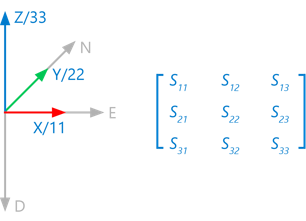
Graphical representation of the input tensor components in the Abaqus convention (shown in color). The JewelSuite convention is shown in gray. The first number indicates the plane, the second number indicates the direction. The FLAC3D convention matches the Abaqus convention, but Abaqus 1=FLAC3D X, 2=Y and 3=Z. click to enlarge
To assign input properties for Tensor (Abaqus/FLAC3D)
On the right side of the form, under Input Properties, select the input properties from the drop-down lists, i.e., S11, S12, S13, S22, S23, S33 for Abaqus, or SXX, SXY, SXZ, SYY, SYZ, SZZ for FLAC3D. When you assign these properties, make sure the Input data requirements as listed above are met.
Continue with step 7.
Select Input type as Tensor (CMG) if your data consists of tensor components that result from a CMG geomechanics simulation. The CMG tensor has its convention relative to the JewelSuite convention as shown on the form, and is defined relative to the local grid axes in CMG. This means, if the input grid from JewelSuite is rotated (non-zero azimuth), a tensor rotation needs be applied as well to correct for the different axes orientation.
To use this method, you need to have the following information:
To assign input properties for Tensor (CMG)
On the right side of the form, under Input Properties, select the input properties from the drop-down lists, i.e., SII, SIJ, SIK, SJJ, SJK, SKK. When you assign these properties, make sure the Input data requirements as listed above are met.
Continue with step 7.
Other applications can have other conventions than JewelSuite and can for example have their axes (on which the tensor is based) pointing in different directions. A matrix rotation or transformation takes place when you convert from such a convention to the JewelSuite convention. For example, from Abaqus/FLAC3D convention to JewelSuite convention this is as follows:
| JewelSuite convention | Abaqus convention | FLAC3D convention |
|---|---|---|
| SNN | S22 | SYY |
| SEE | S11 | SXX |
| SDD | S33 | SZZ |
| SNE | S12 | SXY |
| SED | – S13 | – SXZ |
| SND | – S23 | – SYZ |
Continue with step 8.
When the selected input type is Principal Values, Tensor (JewelSuite) is calculated based on the selected properties.
When selecting Eigen properties, for each tensor three normalized vectors and a length value are calculated.
Continue with step 8.
A maximum value, a minimum value, a vertical value and the azimuth with grid north are calculated using on the selected input properties. Note that when the tensor input describes a situation that is tilted relative to the vertical, not all the information described by the tensor is retained in the principal values.
Continue with step 8.